
Online and Mobile Banking Updates
Changes in Online Banking Coming May 3
Design updates are coming to Online Banking on May 3, and we want to share how those changes will make it easier for you to customize the way you bank online. When logging into Online Banking, you’ll see changes in how accounts are displayed, along with updates to the Statements & Notices tab. See below for overview updates for consumers and overview updates for businesses.
Updates for Consumers
The Overview tab is now the Home tab since this is first screen you see when you log in. On the Home tab, we’ve moved the most important information to the top of the page.
Widgets – like Spendable Balance, My Spending, Category Watch or My Credit Score & Report – will now be displayed below your account list, along with any pending transfers. You can Add Accounts, both external or existing Pinnacle accounts, at the top.
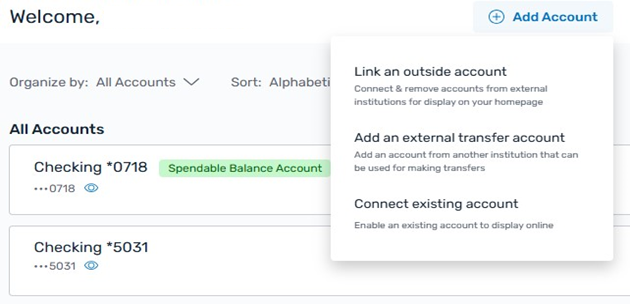
You have new display options that let you organize, or group, your accounts in the way that works best for you. You can also arrange your accounts through the Organize by or the Sort options, as well as Display Options in the top right. You can also choose between a Gallery View or List View.
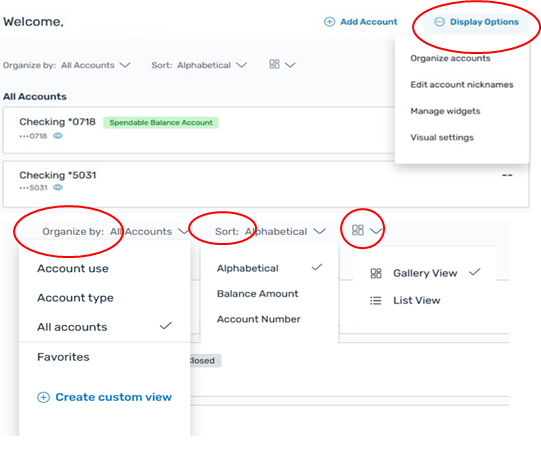
By default, your account listing will show an alphabetical list of All accounts. You can organize your accounts by:
- Account Use to group money you can spend, money you owe and money you are saving are in separate categories.
- Account Type to group Checking, Savings, CDs, Loans & Credit in separate categories.
- Favorites, if you have any accounts previously marked as a favorite. To add additional favorites, you’ll want to access Display Options > Organize accounts > Favorites > Edit and drag any accounts into or out of your Favorites list.
- Custom if you want to choose the order in which you see your accounts.
Within Display Options you can also edit your account nicknames, change the display order of the financial management widgets and modify some visual settings like merchant logos.
If you have 10 or more accounts, you’ll see your accounts listed in two columns so you can get a better view of your full portfolio.
Statements & Notices
We updated the Statements & Notices portal to make it easier to enroll and view your electronic statements and documents.
- The Statements and Notices landing page has been updated with a more streamlined design.
- You can sort the document list by each column and can use column filters to include or exclude items from your list.
- Delivery Preferences and Email Notification Preferences have been moved under the Menu.
- You can now change all accounts to paperless and/or opt-in for email notifications for all accounts with just a few clicks.
- There is a new calendar view, accessible from the Menu, where you can quickly create a download file containing all statements for a given date. Downloads are also accessible from the Menu.
- Click here for more information on how to enroll and manage your eStatements.
Updates for Commercial Clients
The Overview tab is now the Home tab since this is the first screen you see when you log in. We’ve updated your account listing to make it easier for you to view and manage your accounts.
You can Add Accounts at the top of the page.
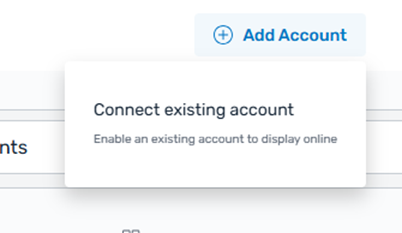
You have new display options that let you organize, or group, your accounts in the way that works best for you. You can also arrange your accounts through the Organize by or the Sort options, as well as Display Options in the top right. You can also modify your custom views and edit account nicknames. You can also choose between a Gallery View or List View.
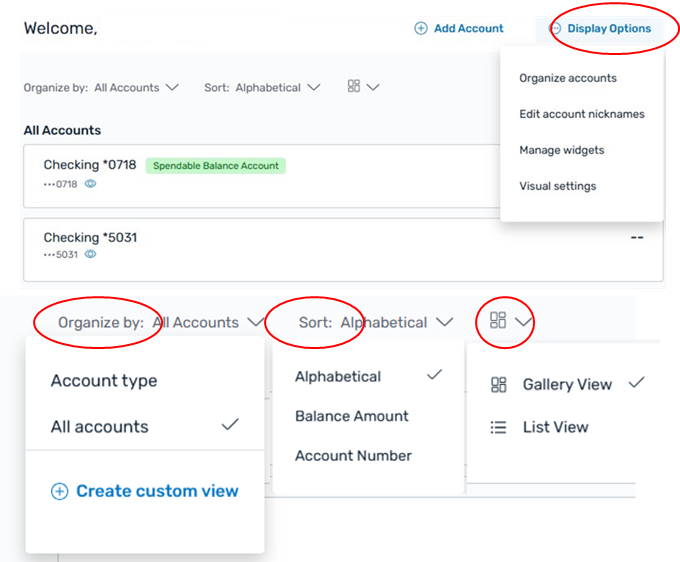
By default, your account listing will show an alphabetical list of All accounts. You can organize your accounts by:
- Account Type to group Checking, Savings, CDs, Loans & Credit in separate categories.
- Create a custom view if you want to choose the order in which you see your accounts.
If you have 10 or more accounts:
If you have 10 or more accounts, you’ll see your accounts listed in two columns so you can get a better view of your full portfolio. If you select list view, they’ll display in a single column.
Statements & Notices
We’ve updated the Statement & Notices portal to make it easier to enroll and view your electronic statements and documents.
- The Statements & Notices landing page has been updated with a more streamlined design.
- You can sort the document list by each column and can use column filters to include or exclude items from your list.
- Delivery Preferences and Email Notification Preferences have been moved under the Menu.
- You can now change all accounts to paperless and/or opt-in for email notifications for all accounts with just a few clicks.
- There is a new calendar view, accessible from the Menu, where you can quickly create a download file containing all statements for a given date. Downloads are also accessible from the Menu.
- Click here for more information on how to enroll and manage your eStatements.